

Orbital Organizer
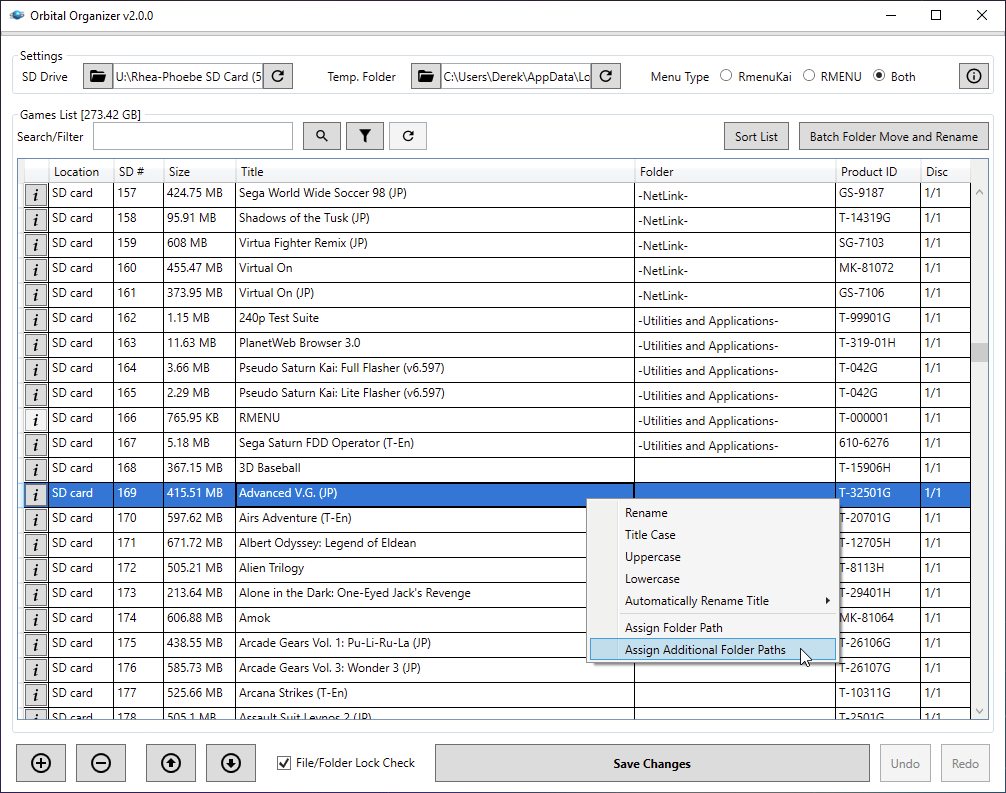
As of version 2.0.0, Orbital Organizer has been completely rewritten from a command-line tool to a cross-platform GUI application.
The GUI design and workflow are inspired by GD MENU Card Manager by Sonik, the equivalent SD card management tool for SEGA Dreamcast GDEMU users, which was also used for the openMenu Virtual Folder Bundle.
Please note that Rhea/Phoebe SD cards must be formatted as FAT32.
Current Version
Orbital Organizer is currently at version 2.1.6.Changelog
- Version 2.1.6 (2026-10-06)
- Dragging entry up or down on Games List now automatically scrolls on Linux and macOS (see Issue 28).
- Dragging entry up or down on Batch Folder Move/Rename tree now automatically scrolls (see Issue 29).
- Improved SD card auto-detection (see Issue 30).
- Prevent leftover temporary folders after SD card saves (see Issue 31).
- Version 2.1.5 (2026-09-01)
- Fixed issue causing the wrong disc image to be launched under certain conditions (see Issue 27).
- Version 2.1.4 (2026-08-26)
- Version 2.1.3 (2026-08-17)
- Version 2.1.2 (2026-08-03)
- Bug fixed causing assigned folder paths to not be remembered under certain conditions (see Issue 20).
- Version 2.1.1 (2026-07-29)
- Linux auto-updater is no longer broken (see Issue 19).
- Version 2.1.0 (2026-07-26)
- Drag-and-drop added to Linux version and macOS drag-and-drop functionality enhanced (see Issue 14).
- SD card free space check now performed before saving changes (see Issue 15).
- SD card file operations cannot be canceled mid-flight on Windows anymore, which could result in SD card corruption (see Issue 16).
- SD card drive selection dropdown no longer truncates path on Linux (see Issue 17).
- CHD games inside ZIP/RAR/7Z archives are now recognized on Linux and macOS (see Issue 18).
- Version 2.0.5 (2026-07-14)
- Batch Folder Move/Rename function added to Linux and macOS builds (see Issue 13).
- Version 2.0.4 (2026-06-22)
- For simplicity, progress bar now uses generic back-and-forth animation for all operations (see Issue 9).
- Pressing Delete key while editing a Games List cell no longer removes the entire entry (see Issue 10).
- Adding CUE-based disc images under certain conditions no longer fails to automatically convert to CloneCD format (see Issue 11).
- Adding CUE-based disc images added as archives (e.g., ZIP) or folders no longer fails to parse metadata (see Issue 12).
- Version 2.0.3 (2026-05-15)
- Version 2.0.2 (2026-05-05)
- Version 2.0.1 (2026-04-05)
- CUE to CCD conversion for Mode 2 discs was broken, now fixed (see Issue 2).
- Version 2.0.0 (2026-04-03)
- Complete rewrite from console application to cross-platform GUI (Windows, macOS, Linux).
- RMENU and RmenuKai now bundled, so users no longer need to source either themselves.
- Disc images can now be assigned to more than one virtual folder path.
- Compressed archives (ZIP, 7z, RAR) containing disc images can now be added directly.
- CUE-based disc images are automatically converted to CloneCD format (CCD/IMG/SUB) when saved to the SD card.
- CHD disc images are supported and automatically decompressed to CUE/BIN before conversion to CCD/IMG/SUB.
- New
IP.BINheader parsing technique implemented for improved metadata accuracy, verified against all 2,455 known Saturn disc images catalogued by Redump. - Auto-update functionality added for Windows and Linux builds (macOS presently not supported).
- Version 1.8 (2025-06-05)
- Game labels, virtual folder paths, and disc numbers can now be modified in
GameList.txtbefore processing SD card instead of solely by modifying metadata text files (e.g.,Name.txt,Folder.txt) inside of numbered folders.
- Game labels, virtual folder paths, and disc numbers can now be modified in
- Version 1.7 (2025-05-12)
- If files/folders are locked by another process when Rhea/Phoebe Sorter attempts to move/rename them, a prompt will now be displayed giving the user the opportunity to close said processes before proceeding, instead of those locked files/folders being skipped.
- Reduced total SD card processing time by up to 75% with new sorting algorithm.
- Version 1.6 (2025-05-10)
- Fixed bug that prevented header metadata extraction on disc images of ISO type.
- Enhanced header metadata extraction methods for greater reliability and accuracy.
- For both migration and adding new games from/to RmenuKai, support added for disc images with duplicate labels, except when said duplicates are multi-disc games residing in nested virtual folder paths.
- Version 1.5 (2025-05-08)
- Fixed bug during migration process that ignored disc image folders after
99.
- Fixed bug during migration process that ignored disc image folders after
- Version 1.4 (2025-05-07)
- Added support for modifying game Product IDs.
- Added support for a secondary instance of legacy RMENU to live alongside, and be accessible from, RmenuKai.
- Added RmenuKai virtual folder path support during migration process.
- Fixed issue preventing original game labels from being preserved during migration process if they contained characters that are restricted in file/folder names.
- Added warnings and confirmation prompts to ensure users do not accidentally have files or folders on their SD card open in File Explorer or any other program during processing, as this will result in data corruption.
- Version 1.3 (2025-05-03)
- Added support for automatic virtual subfolder processing of multi-disc games with RmenuKai.
- Version 1.2 (2025-05-02)
- Added support for virtual folders with RmenuKai.
- Version 1.1 (2025-02-28)
- Cleaned up status message output to be more compact and descriptive.
- Version 1.0 (2024-10-18)
- Initial release.
Credits
- Programming
- Derek Pascarella (ateam)
- Testing
- Multimod
- Kanji
Supported Platforms
| Platform | Architecture | Download | Notes |
|---|---|---|---|
| Windows | x64 | .zip | Requires .NET 8 Desktop Runtime |
| Windows | x86 | .zip | Requires .NET 8 Desktop Runtime |
| macOS | Apple Silicon | .tar.gz (.app bundle) | Self-contained, no runtime needed |
| macOS | Intel | .tar.gz (.app bundle) | Self-contained, no runtime needed |
| Linux | x64 | .tar.gz | Self-contained, no runtime needed |
Supported Disc Image Formats
| Format | Extension(s) | Notes |
|---|---|---|
| ISO 9660 | .iso | Single-file disc image |
| DiscJuggler | .cdi | Single-file disc image |
| Alcohol 120% | .mds, .mdf | Two-file set |
| CloneCD | .ccd, .img, .sub | Three-file set |
| CUE-based | .cue (+ .bin, .iso, .wav, etc.) | Automatically converted to CCD/IMG/SUB |
| CHD | .chd | Decompressed to CUE/BIN then converted to CCD/IMG/SUB |
| Compressed | .zip, .7z, .rar | Archives containing any of the above formats |
Converting Disc Images to CDI Format
Some modified Sega Saturn games may require conversion to DiscJuggler (CDI) format. This can be accomplished using DAEMON Tools and DiscJuggler.- Mount the source disc image's CUE sheet with DAEMON Tools.
- Use DiscJuggler to dump the contents of the virtual CD-ROM drive to CDI format.
Troubleshooting
Newer versions of Windows may cause issues with the DAEMON Tools and DiscJuggler method. If conversion fails to produce a working disc image, the following process can be used.- Provision a Windows XP virtual machine using a platform like VMware or VirtualBox.
- Inside the VM, use a specific version of DAEMON Tools (v3.47) to mount the source image.
- Use a specific version of DiscJuggler (v6.00.1400) to dump to CDI.
Basic Usage
Loading an SD Card
Select the SD card drive from the SD Drive dropdown, or click the folder icon to browse for a custom folder. Once selected, Orbital Organizer scans numbered folders on the card and reads sidecar metadata files (Name.txt, Folder.txt, Disc.txt, etc.) from each game folder.If sidecar metadata files are missing, Orbital Organizer will prompt to scan disc images for
IP.BIN header data. This extracts the game title, product ID, region, version, and release date directly from each disc image.The Temp. Folder setting controls where temporary files are stored during operations. By default, the system temp directory is used.
Adding Games
New games can be added by clicking the + button or by dragging disc image files, folders, or compressed archives directly onto the game list. Added games appear with "Other" in the Location column until changes are saved to the SD card.Removing Games
Select one or more games in the list and click the - button. The corresponding numbered folders are deleted from the SD card when changes are saved.Editing Game Information
Double-click a cell in the Title, Folder (RmenuKai only), Product ID, or Disc column to edit its value inline. The Disc column uses X/Y format (e.g., 1/1, 2/4). When using RmenuKai, multi-disc games that share the same title are automatically grouped into a single menu entry with a disc selection prompt. Each disc in the set must have the same title and a sequential disc number (e.g., 1/4, 2/4, 3/4, 4/4).Multiple games can be selected at once for bulk operations. Right-clicking opens a context menu with the following options, most of which support multi-select:
- Rename - Rename the selected game title (single selection only).
- Title Case / Uppercase / Lowercase - Change the case of all selected game titles.
- Automatically Rename Title- Rename all selected titles using one of three sources:
- Using
IP.BINinfo - Extract titles from each disc image'sIP.BINheader. - Using its folder name on computer - Use the name of each source folder on the computer (only available for newly added games).
- Using disc image's base file name - Use the file name of each disc image (only available for newly added games).
- Using
- Assign Folder Path (RmenuKai only) - Set the virtual folder path for all selected games (e.g.,
Games\JRPG). - Assign Additional Folder Paths (RmenuKai only) - Set up to five alternative virtual folder paths for a game, allowing it to appear in multiple folders (single selection only).
Batch Folder Move and Rename
The Batch Folder Move and Rename button (RmenuKai only) opens a dialog that displays every virtual folder path in the game list as a tree, allowing folders to be reorganized in bulk without editing each game individually:- Rename - Double-click a folder to rename it. Press Enter to confirm or Escape to revert.
- Move - Drag a folder onto another folder to make it a subfolder, or onto (Root) to move it to the top level.
Modifying Product ID
The Product ID is a piece of metadata associated with Sega Saturn games which ties a piece of software to a unique identifier. There are cases where it may be useful to populate a missing Product ID for homebrew software, or fix incorrect Product IDs like that of the Japanese version of "Virtua Fighter Kids" whereGS-9079 is stored on the disc but the correct ID is GS-9098.Orbital Organizer allows modification of this ID by editing the Product ID column directly. When changes are saved, the disc image's
IP.BIN header is patched with the new value.Reordering Games
Use the up and down arrow buttons to move a selected game in the list. The Sort List button sorts all games alphabetically by a combination of folder path (RmenuKai only), title, and disc number.Searching and Filtering
The Search/Filter text box accepts search terms that match against game titles and product IDs.- The search button (magnifying glass) navigates to the next matching entry in the list.
- The filter button (funnel) hides all non-matching entries, showing only games that match the search term.
- The reset button clears the filter and restores the full game list.
Saving Changes
Clicking Save Changes writes all pending changes to the SD card. This includes:- Renumbering game folders sequentially (starting from
02). - Copying new game files to the SD card.
- Converting CUE-based disc images to CloneCD format.
- Rebuilding the RMENU/RmenuKai menu ISO in folder
01. - Generating
LIST.INIfor the RMENU/RmenuKai menu system. - Generating
GameList.txtwith a formatted table of all games on the card. - Writing or updating sidecar metadata files in each game folder.
- Removing orphaned numbered folders that no longer correspond to any game in the list.
Undo and Redo
The Undo and Redo buttons support up to 10 levels of undo/redo for all list operations (adding, removing, reordering, editing).Disc Image Info
Clicking the info button next to a game entry opens a dialog displaying metadata parsed from the disc image'sIP.BIN header:- Title - The game title as stored in the disc image.
- Product ID - The product/serial number.
- Version - The software version.
- Release Date - The release date.
- Region - The region code (e.g., J, T, U, E).
- Format - The disc image format (e.g., ISO, CDI, CCD/IMG/SUB, MDS/MDF).
- Size - The total size of all disc image files.
- Folders - All virtual folder paths assigned to the disc image (RmenuKai only).
Menu Type Options
The Menu Type setting controls which menu system Orbital Organizer targets when building the SD card. Three options are available:- RmenuKai - Targets RmenuKai by cafe-alpha. This enables virtual folder support and alternative folder paths, allowing games to be organized into categories without physically moving files. Orbital Organizer currently ships with RmenuKai v6.545.
- RMENU - Targets the legacy RMENU by neuroacid. Games appear in a flat list with no folder support. Orbital Organizer currently ships with RMENU v0.2.
- Both - Targets RmenuKai as the primary menu in folder
01, with a secondary instance of legacy RMENU in its own numbered folder that can be launched directly from the RmenuKai game list. The secondary RMENU instance does not reside in folder01. Instead, it occupies a numbered folder based on its position in the game list. This is useful for niche cases such as launching JHL loader cheats via legacy RMENU, and is commonly used alongside a Gamer's Cartridge, though there are several other reasons a user may want both menu systems available.
0.BIN file in the tools\rmenukai folder with the updated version from the RmenuKai website. The new version will be used the next time changes are saved to the SD card.SD Card Compatibility
Orbital Organizer works with any existing Rhea/Phoebe SD card out of the box, regardless of how it was previously set up or managed. This includes SD cards built manually, SD cards managed by the traditional RMENU/RmenuKai rebuild process, and SD cards managed by the previous version of this tool.When loading an SD card for the first time, Orbital Organizer reads
LIST.INI to recover game titles and optional virtual folder paths, then scans disc images for any remaining metadata. No manual migration or preparation is needed.Credits
- Programming
- Derek Pascarella (ateam)
- Special Thanks
- Sonik for his work on GD MENU Card Manager, upon which the Orbital Organizer GUI is based
Legal and Licensing
Orbital Organizer
Copyright (C) 2026, Derek Pascarella (ateam)Licensed under the GNU General Public License v3.0 (GPL-3.0).
Repository: https://github.com/DerekPascarella/Orbital-Organizer
The GUI design and workflow of Orbital Organizer are inspired by GD MENU Card Manager by Sonik
(GPL-3.0), the equivalent SD card management tool for SEGA Dreamcast GDEMU users.
For the full license text, see
LICENSE.RMENU
RMENU was originally created by neuroacid. Orbital Organizer rebuilds RMENU ISO images for Rhea/Phoebe compatibility.RmenuKai
RmenuKai was originally created by cafe-alpha. Orbital Organizer supports RmenuKai's virtual folder system and alternative folder paths.Third-Party Components
- DiscUtils (MIT) - ISO 9660 image building
- SharpCompress (MIT) - archive extraction
- Avalonia UI (MIT) - cross-platform GUI framework
- ByteSize (MIT) - file size formatting


